
If you have used the bulk entry option when creating, or you want to edit multiple documents at the same time, please see the guide below.
Step 1
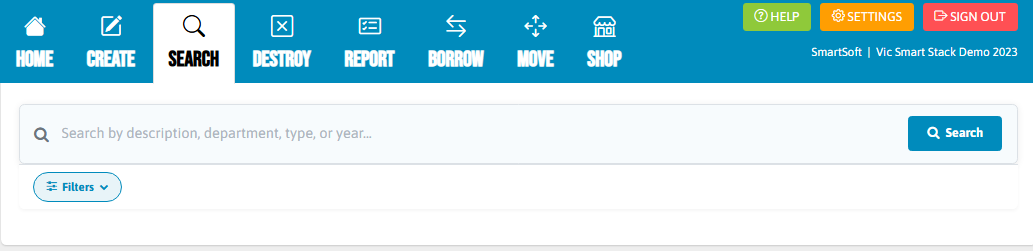
Go to the search function in the software and search for the required documents.
Step 2
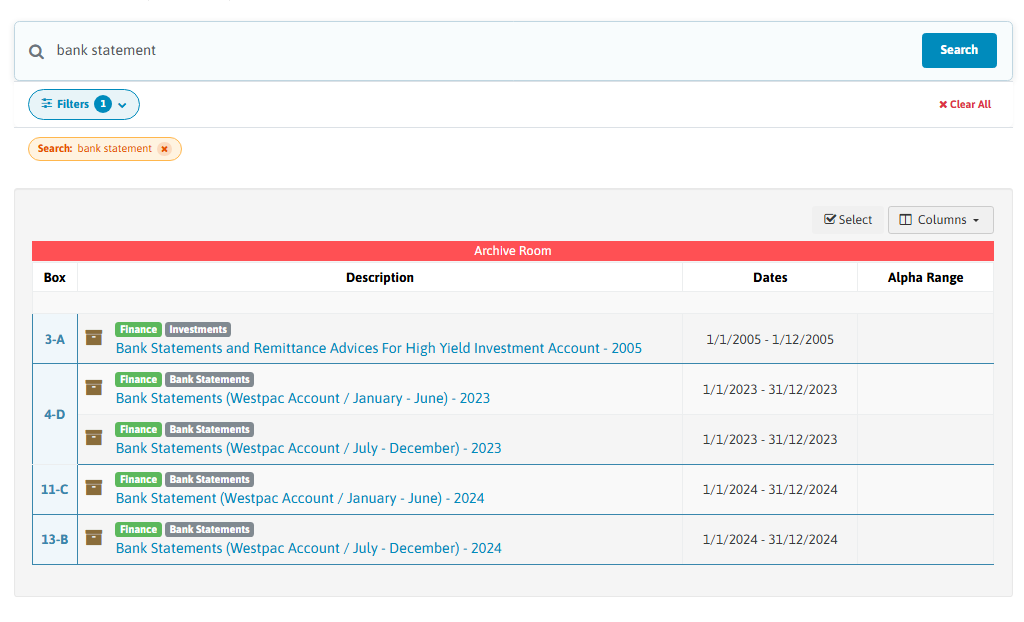
When you click search, your search results will come back in a list.
There is a box with a tick on it on the right-hand side which says "Select".
Step 3
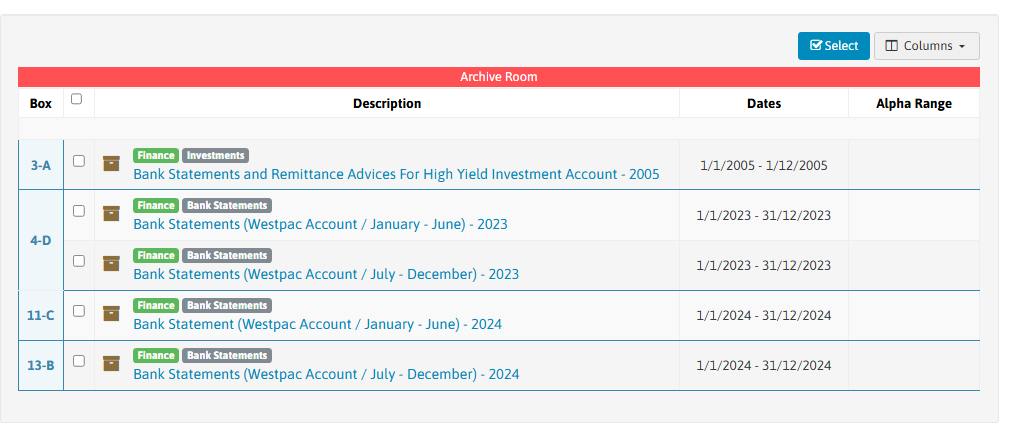
You want to click on the "Select" tick box which will then populate a tick box next to your list of results.
Step 4
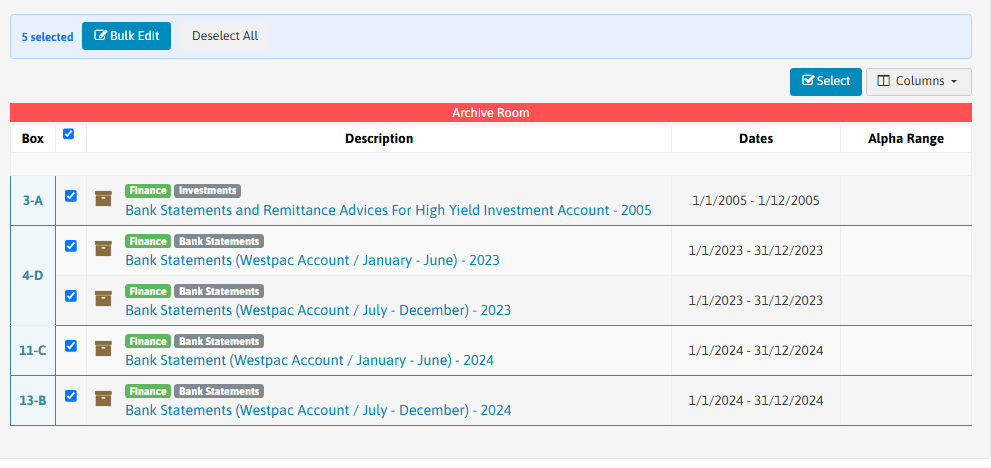
You can then manually select individual entries by clicking their tick boxes, or select all documents on the page by clicking the small empty box next to "Box" beneath the red location strip.
Step 5
Once your chosen documents are selected you can then click the "Bulk Edit" button in blue.

Step 6
It will then bring up the below "Bulk Edit" box which will allow you to edit the properties of all the documents you have selected.
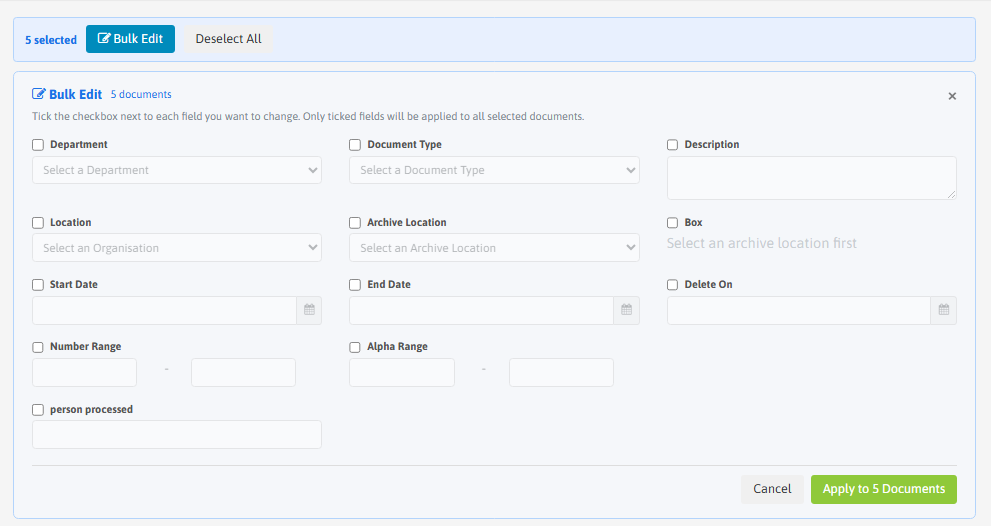
This will allow you to select any filters you want and edit to apply the changes to all of the selected documents.
Step 7
Once you have made all your required changes, click the green "Apply to (X) Documents". The number will refer to the number of documents you selected.
